Open Planninq for the first time
A first look at Planninq — the dashboard, the navigation, and how to confirm Planninq is wired up to OpenRegister so projects, tasks, boards, and time entries can load.
Goal
By the end you will have opened the Planninq app, recognised the dashboard KPIs and the navigation, and confirmed that the OpenRegister back end is connected.
Prerequisites
- A Nextcloud account on an instance where the Planninq app is installed and enabled.
- The OpenRegister app installed and enabled — Planninq stores everything (projects, columns, tasks, time entries, labels) in OpenRegister, so it is a hard dependency.
- The Planninq register and its schemas initialised. An admin runs this once from Settings → Administration → Planninq (see Manage Planninq settings).
Steps
-
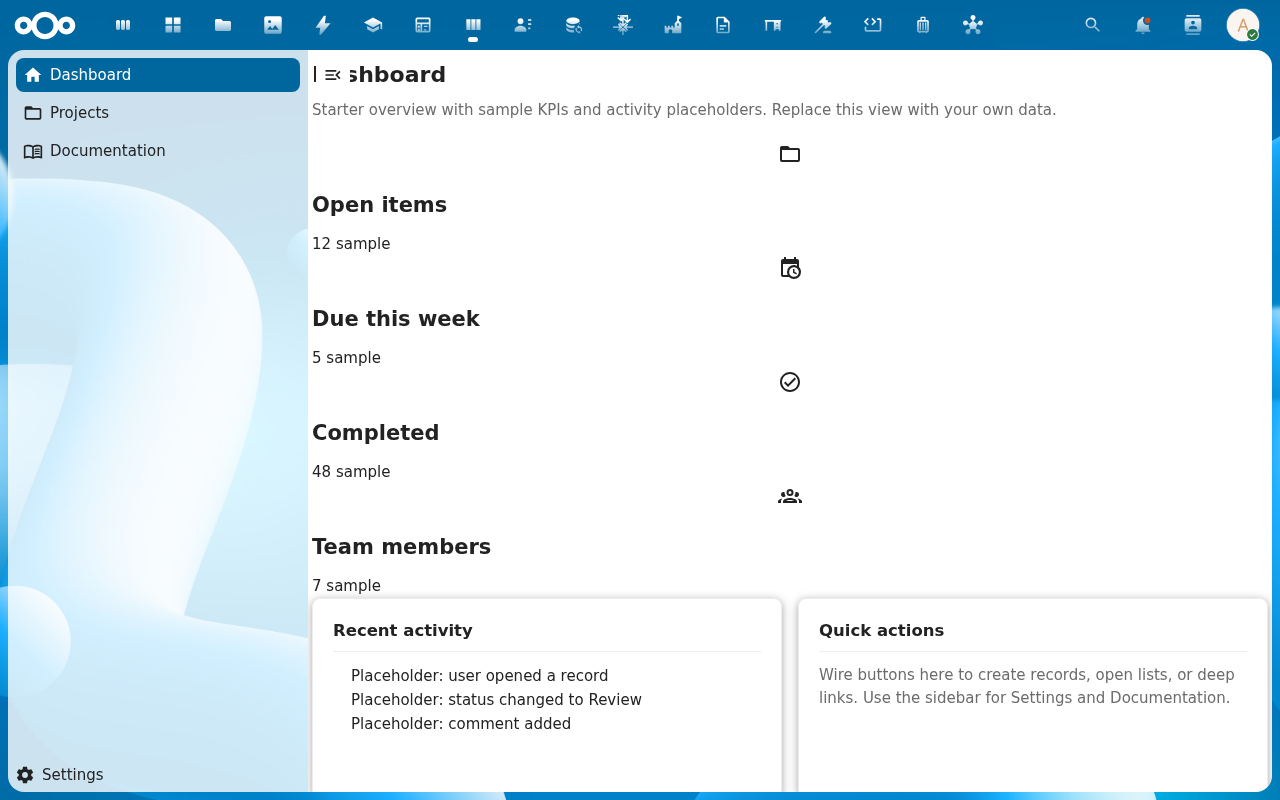
Open the Nextcloud app menu in the top bar and pick Planninq. You land on the Dashboard.
-
Read the four KPI cards — Open tasks (open or in_progress assigned to you), Overdue tasks (past their due date), In Progress, Completed today. On a fresh install they read
0; they fill in as tasks are assigned and worked on. Click any card to jump straight to My Work with that filter applied.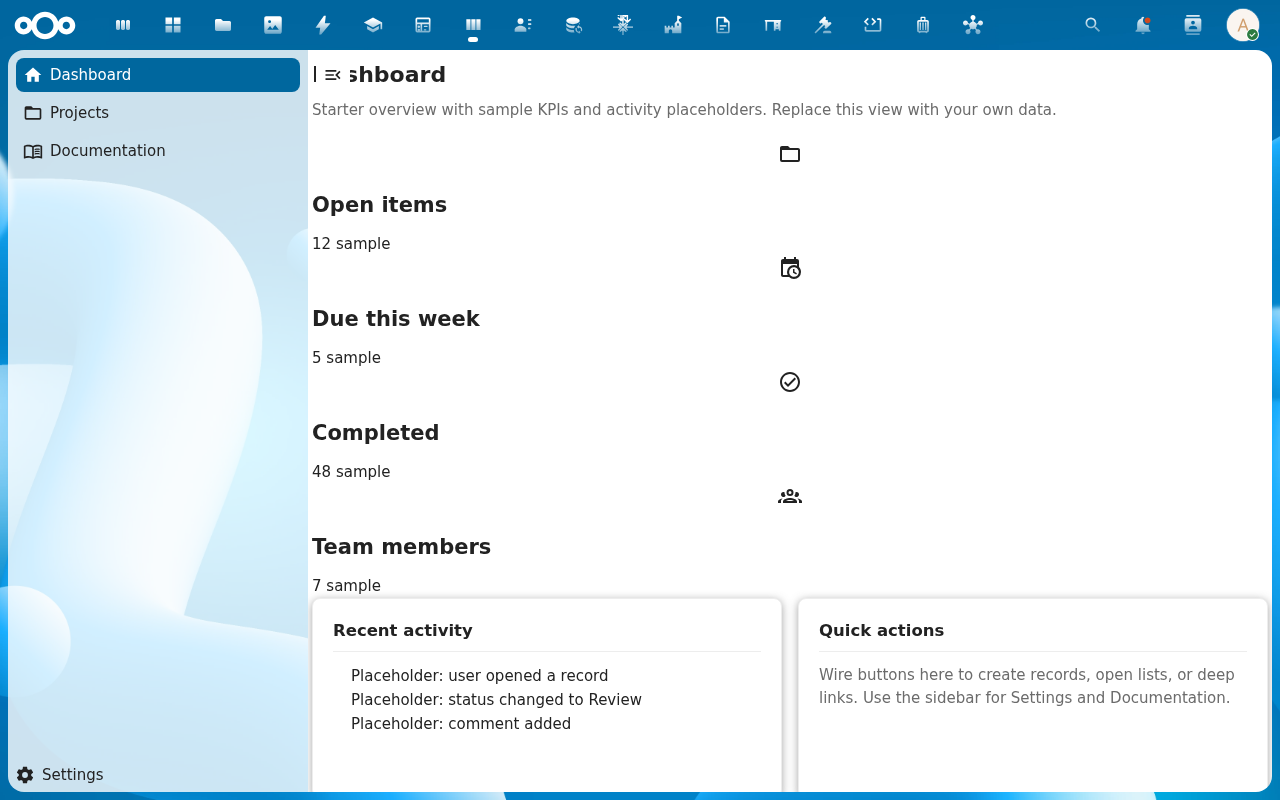
-
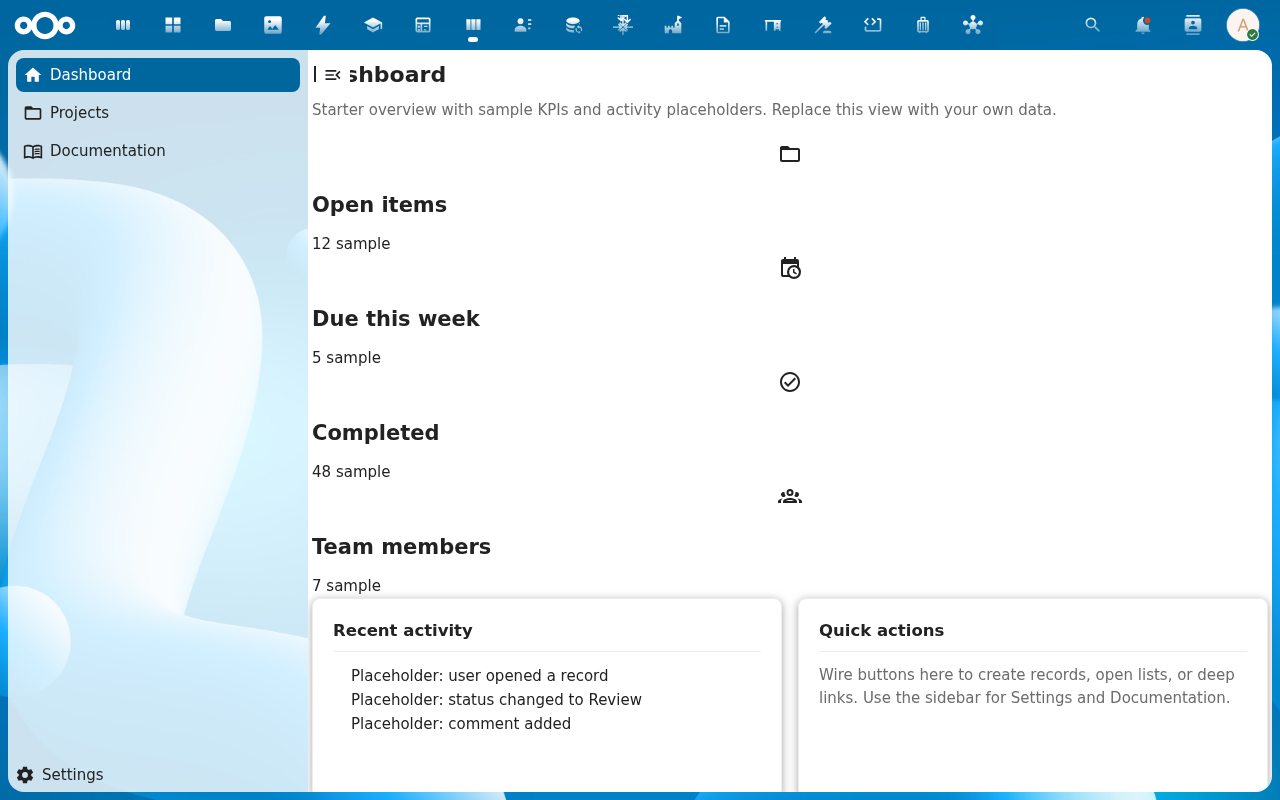
Below the KPIs you see Recent projects (the five most recently active projects you are a member of) and Due this week (tasks assigned to you with a due date in the next seven days, sorted by due date). New users with no projects see a No projects yet empty state with a Create project button.
-
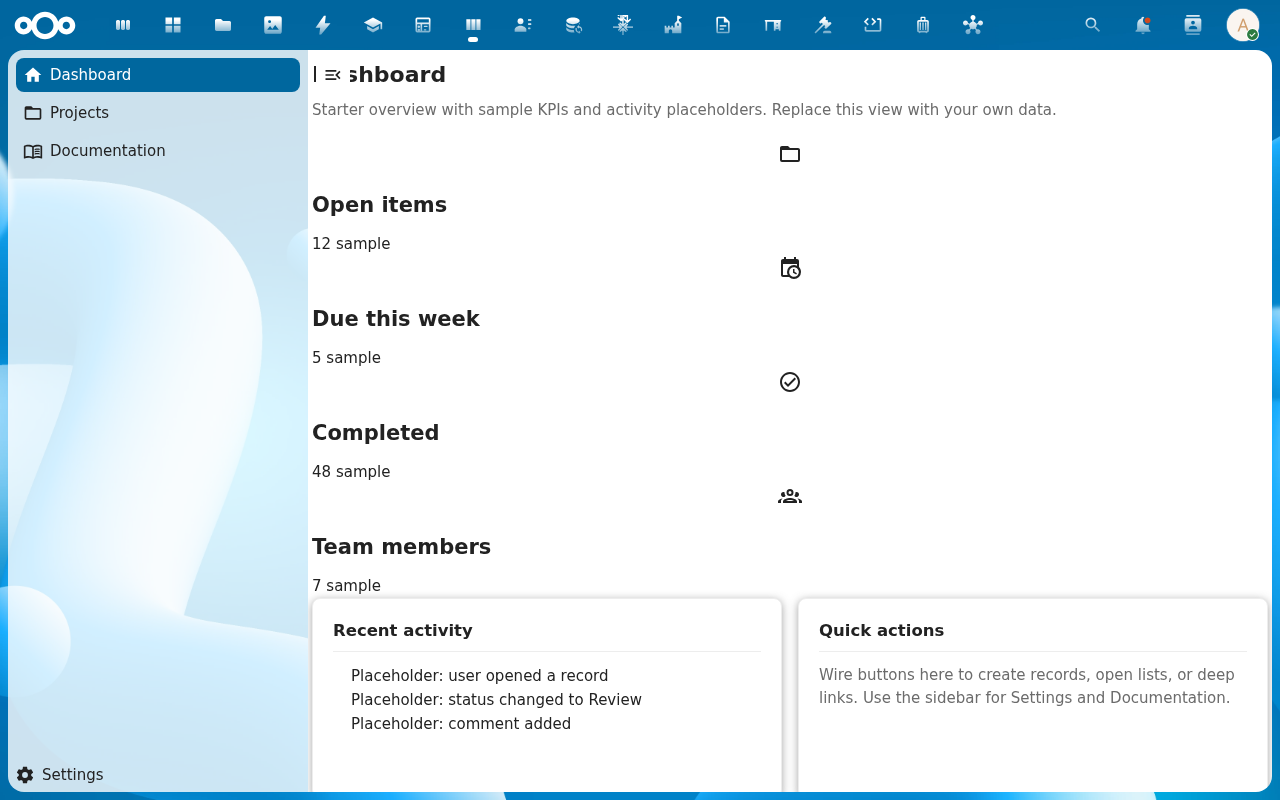
Open the left navigation. Top-level entries: Dashboard, My Work, Projects, Timesheet. Below the divider you have Settings (the per-user dialog, via the gear icon). The Projects entry takes you to the project list — empty on a fresh install.
Verification
You are set up correctly when: the Planninq dashboard renders without an error banner, the KPI cards display (zero counts are fine), the left navigation lists the entries above, and clicking Projects loads the project list — either with rows or a clean No projects yet empty state, not a load error.
Common issues
| Symptom | Fix |
|---|---|
| "OpenRegister is not installed or enabled" banner | Install and enable the OpenRegister app, then reload Planninq. |
KPI cards show — instead of 0 | The Planninq register isn't initialised yet — an admin runs Initialize register from Settings → Administration → Planninq (see Manage Planninq settings). |
| Planninq is missing from the app menu | The app is not enabled for your account — ask an administrator to enable it (and check it is not restricted to a group you are not in). |
| Screenshots may be missing | App not yet installed in the test environment; rerun npm run test:e2e:docs once it is. |
Reference
- Create a project — the natural next step once the app loads.
- Your dashboard and My Work — what the KPI cards point at.
- Manage Planninq settings — register initialisation, version info.
- Dashboard & My Work reference — the underlying feature spec.